
Financial Supply Chain Management
Sustainable Trade Finance
Sustainability Report

-
you are in Wholesale Banking

For Individuals
Personal BankingWealth BankingPrivilege BankingFor Companies
Wholesale BankingINDUSTRY INSIGHTSAbout UOB
ABOUT USUOB FinLaB
UOB FinLab


Features


Access, view and transact from any UOB account across countries with a single login. Enjoy a consolidated view of your balances and transactions for all your UOB accounts across countries.

Access a full suite of payment and collection services including single and bulk fund transfers via BI-FAST, SKN / LLG, telegraphic transfers and more. Upload bulk files with ease for bulk payments, payroll and collections.
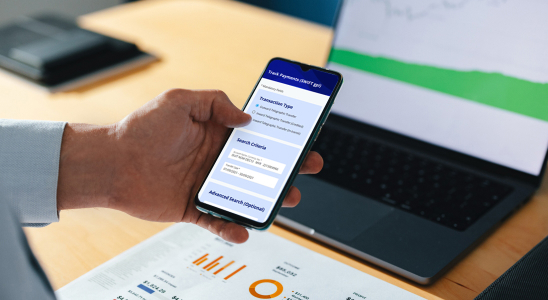
Track incoming and outgoing cross-border payments from end-to-end. Enjoy full visibility of the payment status, charges and FX rates applied.

View status of all transactions in a single location. Transactions are grouped according to their status for easy reference.

New to UOB Infinity?
For new users without a business account with UOB:
Apply for a UOB business account today to help to manage your business:
Find out more about UOB business accounts
If you are interested in registering for Financial Supply Chain Management (FSCM):
Please contact your relationship manager or our UOB Call Center at 14008 (for Indonesia) or +6221-2355-9000 (for Overseas) from Mondays to Fridays, 9.00am to 5.30pm, excluding public holidays.
Existing UOB Infinity users?
Have you downloaded UOB Infinity App?

Download the app from theApple App Store or Google Play Store to bank on the go.
Have you activated Infinity Secure (digital token)?
Log in to UOB Infinity via the mobile app and follow the instructions to activate Infinity Secure.
Are you looking to apply for changes to user profiles and subscribed services?
Sign up for:
- Bulk Services – payroll, payment and collection
- eFX – online foreign exchange
- MT103 copy
- Trade Services
- Edit subscribed services
- Edit user details/profiles
- Edit transaction approval settings
- Request for additional tokens
- To access FSCM facilities
Are you looking to apply for token sharing?
You can use the same token to access other Indonesia accounts in the same company.
Are you looking to apply for Global View and more customisation?
With Global View and more customisation, you can:
- Access your company accounts in other countries with a single login
- Add verifier and sender roles
- Customise transaction approval settings by services
Please contact us for more assistance via:
- Your Relationship Manager;
- UOB Call Center at 14008 (for Indonesia) or +6221-2355-9000 (for Overseas) ;or
- Our branches
Are you interested to register for Financial Supply Chain Management (FSCM)?
Please contact your relationship manager or our UOB Call Center at 14008 (for Indonesia) or +6221-2355-9000 (for Overseas) from Mondays to Fridays, 9.00am to 5.30pm, excluding public holidays.

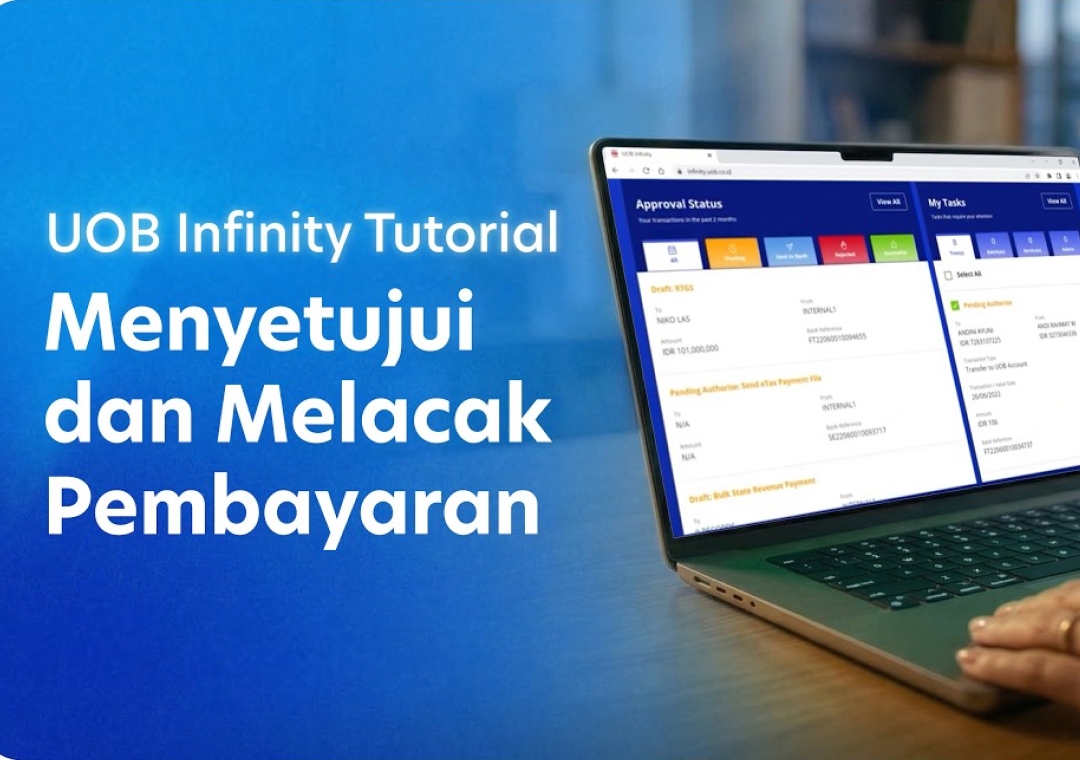


Workshops
Workshop for transactional services
Attend our remote training workshops designed to help you get started on UOB Infinity.
- Login
- Infinity Secure
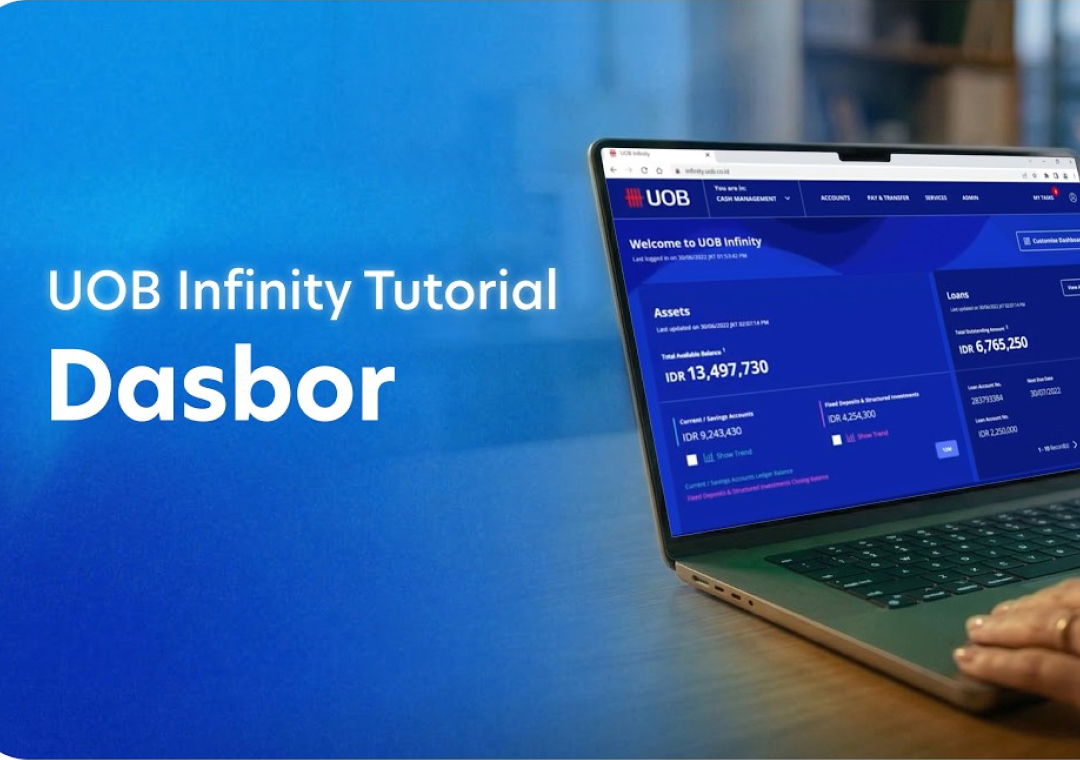
- Dashboard and navigation
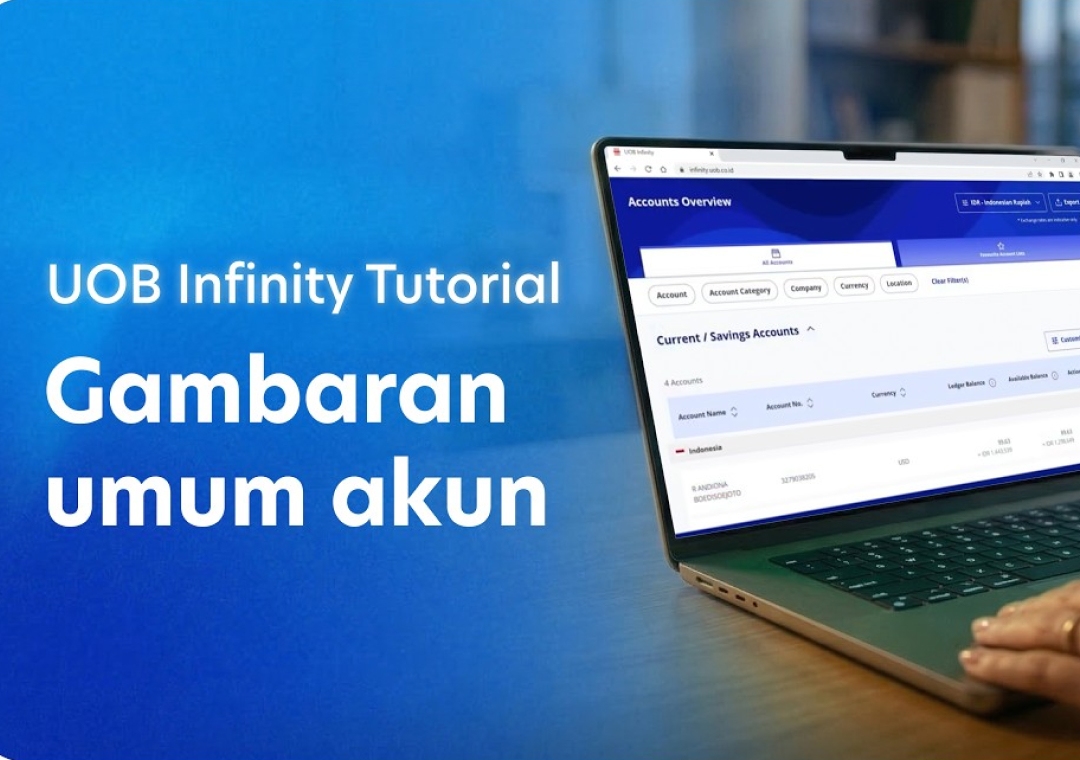
- Account services (accounts overview/account activities)
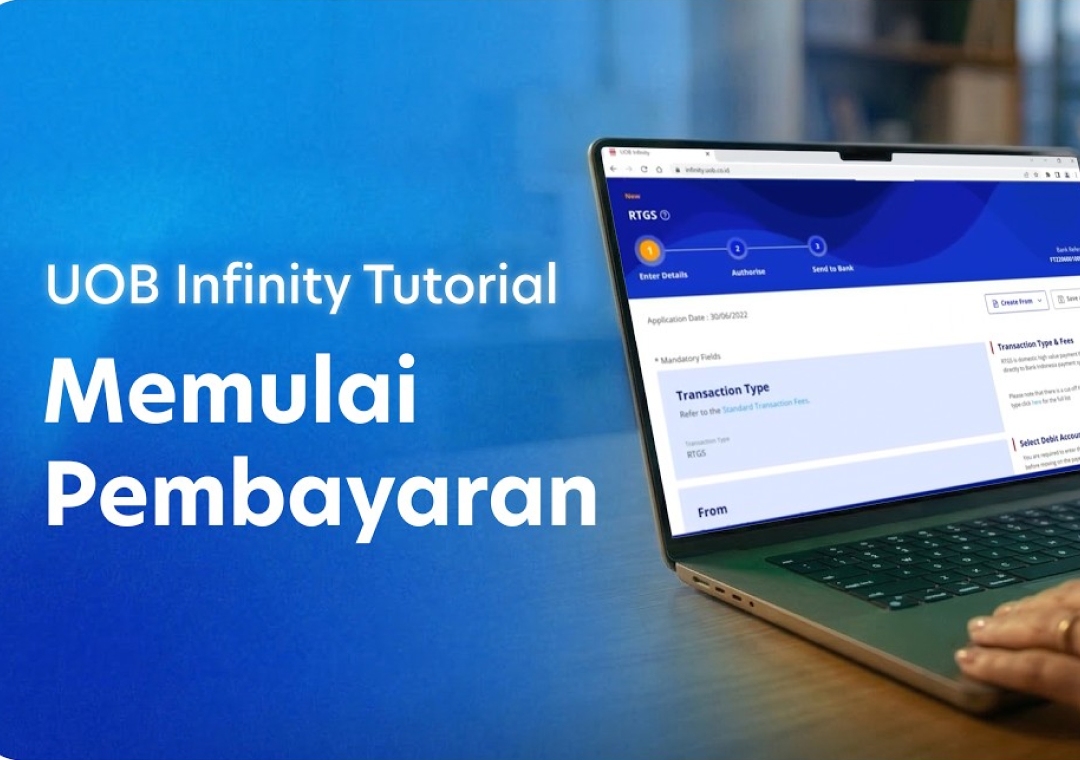
- Payment services (single local payments, transfers, remittance, stop cheques)
- Transaction approval
- Transaction cut-off time
- Transaction status, track payment (SWIFT gpi) and Trade services reports (includes trade bill summary, letter of credit and import bill)
- Company Administration
Thank you for choosing UOB Infinity
Step 1
Download the UOB Infinity App from the Apple App Store or Google Play Store to bank on the go.
Step 2
Log in to the UOB Infinity App and follow the instructions to activate Infinity Secure (digital token).
Step 3

Log in to start using UOB Infinity.
Ready to apply?
Ready to apply?
For further information regarding this service, you may contact Trade Sales or Relationship Manager Bank UOB Indonesia, or call the UOB Contact Center at 14008.
Frequently asked questions
How do I initiate/create a payment instruction in UOB Infinity?
To initiate a payment instruction in UOB Infinity, from the top menu bar, select Pay and Transfer > select the payment type and follow the onscreen instructions accordingly. For a step-by-step guide, you can access the user guide or click the question mark icon located at the top left of the screen.
During payment initiation, the Payee List shows the 10 most recent payees from the same user with the most recent listed first. There is no filtering by debit account or transaction type.
Can I restrict certain creators/authorizers from creating/authorizing payments to specific payees only?
Yes, you can restrict users from creating/approving payments to specific payees only by allowing them access to Pre-Approved Payees (PAPs). The Company Administrator can manage user access by selecting "PAP Only" under user account settings.
If I perform a bulk payroll through UOB Infinity, when will staff receive their salaries?
Payroll transactions will be processed on the same day as long as they are approved and released to the bank before the cut-off time. For recipients at other banks, some banks may have different credit times.
After I successfully create a transaction, can I find out which authorizer will subsequently approve my transaction?
You can find out which authorizers can subsequently approve a transaction from the Approval Status:
- From the top menu bar, select Account > Approval Status
- Find your transaction and click the action menu (...)
- Select "Audit Trail" to view the authorizer's name
How do I approve payment instructions in UOB Infinity, and can other authorisers assist when the designated one is unavailable?
You can approve a payment instruction from:
- Dashboard - In “My Tasks widget", the five most recent transactions requiring your approval will be listed; OR
- My Tasks - From the top menu bar, select My Tasks to view the full list of requests requiring your approval
If you need a step-by-step guide, please log in to UOB Infinity, click the user icon at the top menu bar and click “Need Help?”.
If you are authorised to approve your own payment, you will have the option to approve the payment immediately by selecting Submit Now . Alternatively, you may approve the payment later by selecting "Add to My Tasks”.
Set up or update authorisation mandate
To set up or update your approval mandate, or change the authorisers' authorisation groups, please submit a maintenance form.
Who can approve the payment?
Any authoriser indicated according to the company's approval mandate can approve the payment, even if the authoriser that you notified to approve the payment is not available to approve it.
What are the available limit controls for transactions? How can I recall a payment after it has been fully authorised and sent for processing?
Every monetary transaction can only be approved according to the approval mandate in the authorisation profile. In addition, you can also set up the following limit controls:
- Limit: Signatory Daily Limit
- Type: Daily Limit per Signatory
- Default Limit: Any Amount, subject to availability of funds in the account
- Applies to: Any Signatory in Group A, B, C, D or E
- Limit: Transaction Limit*
- Type: Transaction Limit per Signatory in each Signatory Group
- Default Limit: Any Amount, subject to availability of funds in the account
- Applies to:All products/services available in UOB Infinity
Note: *If you do not indicate a limit in the Registration Form, the Bank will set IDR 9,999,999,999,999.99 as the default limit.
To recall a payment after it has been sent to the bank for processing, please immediately contact the UOB Call Center at 14008 (local) or +6221-2355-9000 (from overseas)
How do I find out about the status of my transaction?
You can check the transaction status by selecting Accounts > Approval Status from the top menu bar.
Approval Status provides a consolidated view of all transaction statuses in a single location. The transactions are classified by their status for easy reference:
Status
- White - All: All transactions regardless of status
- Orange - Pending (Transactions that have not been submitted/sent to the Bank)
- Blue - Sent to bank (Transactions that have been submitted to the Bank but have not been processed)
- Red - Rejected (Transactions that have been rejected or bulk transactions that have been partially rejected)
- Green - Successful (Transactions that have been successfully processed by the Bank)
In addition, the Company Administrator can also set up email or SMS alerts to notify the transaction makers and/or authorisers when a transaction has been successfully processed or rejected.
Can I track my cross border transactions using UOB Infinity?
Yes, you can track your cross-border and cross-currency transactions from Track Payments (SWIFT gpi) . To access Track Payments (SWIFT gpi) , from the top menu bar, select Pay & Transfer > Track Payments (SWIFT gpi).
SWIFT Global Payment Innovation (SWIFT gpi) is a service offered by SWIFT, aimed at transforming the customer experience in tracking crossborder payments. SWIFT is a global provider of secure financial messaging services.
Using the “Track Payments (SWIFT gpi)”
This feature allows users to do end-to-end tracking of their incoming/outgoing cross-border payments, which includes Telegraphic Transfers/ MEPS/MT202 transactions. There is no cost to using Track Payments (SWIFT gpi).
The blue column indicates where the payment is at currently.
- Green – Completed
- Orange – In Progress / On Hold
- Red – Rejected
- Grey – Not traceable (e.g. the payment has reached a non-SWIFT bank)
You can use the feature to track Telegraphic Transfers submitted over the counter as long as you know the originating account number of the
payments.
For a more detailed explanation of this feature, please log in to UOB Infinity, click the user icon at the top menu bar, and click “Need Help?”.
How can I export transaction details, including payment advices and MT940 statements? Can I retrieve payment records made more than 6 months ago?
You can export the transaction details as a PDF or CSV file. The CSV file format is only applicable for bulk transactions. For the PDF file format, you can choose to export the transaction details with or without the audit trail information.
How to export transaction details
To export transaction details:
- From the top menu bar, select Accounts > Approval Status
- Search for the transaction
- From the action menu, select “View Details”
- Select “Export” at the top right of the transaction details
For single transactions:
- If you export as PDF , you will be able to download the file immediately.
- If you export as PDF with Audit Trail , you will receive an email notification when the file is ready to be downloaded. To download, from the top
menu bar, select Accounts > Download Reports & Advices. Select “User Generated” tab > click the download icon for the transaction.
For bulk transactions:
- You will receive an email notification when the file is ready to be downloaded. To download, from the top menu bar, select Accounts >
Download Reports & Advices. Select “User Generated” tab > click the download icon for the transaction.
Transaction details are kept in UOB Infinity for 6 months. If you need to obtain the details of payments made more than 6 months ago, please
immediately contact the UOB Call Center at 14008 (local) or +6221-2355-9000 (from overseas).
For other reconciliation/statement reports (e.g. MT940):
You can request for the report to be made available in UOB Infinity through your relationship manager or by visiting the nearest UOB branch.
To download the report:
- From the top menu bar, select Accounts > Download Reports & Advices
- Click the icon under the Downloads column.
Are payment advices available in UOB Infinity?
Yes, there are payment advices generated for Telegraphic Transfers. To locate the advice: from top menu bar
- Select Accounts > Account Activities.
- Select the account number and date range (when the outgoing/incoming Telegraphic Transfer occurred).
- UTo download, click the icon available at the "Advice" column.
You can also view and export the inward remittance details using the same steps.
Can I utilise and monitor my existing Foreign Exchange (FX) contracts in UOB Infinity?
Utilise Foreign Exchange (FX) contracts
You can utilise your existing FX contracts when you submit cross-currency payments. To utilise existing FX contracts when initiating cross-currency
payments:
- Choose Use FX Contract
- The list of FX Contract(s) that you can utilise based on the currency pair will be displayed
- Alternatively, there is an option for you to enter the FX Contract ID manually
Please note:
- For cross-currency payment to another UOB account you can only use one FX contract. For cross-currency payment using Telegraphic Transfer (TT) you can use multiple FX contracts within one single TT transaction.
Monitor Foreign Exchange (FX) contracts
AYou can view and monitor your FX contract utilisation by adding the FX Contracts & Balances widget to your Dashboard. To add/remove a widget in Dashboard, click “Customise Dashboard” at the top right corner of the screen.
For a step-by-step guide to add the FX Contracts & Balances widget into your Infinity Dashboard, please log in to UOB Infinity, click the user icon
at the top menu bar and click “Need Help?”.
What is the biometric login for the UOB Infinity mobile app?
The biometric feature allows you to access the mobile app quickly and securely by using your mobile device's fingerprint / face recognition function. With this feature, you do not need to enter your password to log in to the UOB Infinity mobile app.
For a step-by-step guide to setup the fingerprint / face recognition authentication, please log in to UOB Infinity, click the user icon at the top menu bar and click “Need Help?”.
Enable biometric login on 1 device only
For security reasons, each user is allowed to enable the fingerprint / face recognition function on one mobile device only. If you are switching to a new mobile device, you need to re-enable your fingerprint / face recognition function on the new device. The fingerprint / face recognition function set up on the existing device will be removed automatically once it has been set up on the new mobile device.
Re-enable biometric login if uninstall UOB Infinity mobile app
For security reasons, your fingerprint / face recognition setup in the app will be removed when you uninstall the app or clear the app data. You will need to re-enable your fingerprint / face recognition function on your mobile device.
Failed attempts for biometric login
For security reasons, your fingerprint / face recognition function will be disabled after the 5th failed attempt. Please use your password to log in so as to re-enable your fingerprint / face recognition function.
Can I provide my overseas contact number to be used in UOB Infinity?
Yes, we can send SMS notifications to Indonesian and international mobile numbers. SMS receipt will also be subject to the rules of the recipient country and network provider.
Can I approve transactions using the UOB Infinity mobile app?
Yes, you can approve all types of transactions using the UOB Infinity mobile app.
What are the technical specifications and security for UOB Infinity?
Technical specifications and security aspects for UOB Infinity can be found in the UOB Infinity Product & Service Information Summary (RIPLAY) here.
Where can I find more information about UOB Infinity?
Click here for other general frequently asked questions about UOB Infinity.
Additional information
Terms & Conditions
Business Internet Banking (UOB Infinity)
- UOB Business Internet Banking Service Agreement
- Addendum to the UOB Business Internet Banking Service Agreement
- Business Internet Banking Service Agreement For Non Customer
- Business Internet Banking Service Agreement for Non Customer (Addendum)
Trade & Financial Supply Chain Management (FSCM)
- FSCM Internet Banking Service Agreement
- Specific Terms & Conditions of Letter of Credit (including Surat Kredit Berdokumen Dalam Negeri)
- Specific Terms & Conditions of Trust Receipt
- Specific Terms & Conditions of Documentary Collection
- Specific Terms & Conditions of Bank Guarantee
- Specific Terms & Conditions of Shipping Guarantee (including Bill of Lading Endorsement)
- Specific Terms & Conditions of Financing Request (Open Account), including Supplier Finance - Pre-shipment, Distributor Finance - Post Shipment, Distributor Finance - Advance Payment, and Early Payment Discounting
- Specific Terms & Conditions of Account Receivables Purchase and Supplier Finance (including Supplier Finance - Post Shipment with Recourse, and Supplier Finance - Post Shipment without Recourse)
UOB Infinity cut off time transaction processing updates
View the latest cut-off times for payments and transfers on UOB Infinity to ensure same-day processing here.
You may also like

Financial Supply Chain Management
Manage funding at ease and mitigate risk to ensure stability of your financial supply chain and grow your distribution network.

Trade Services
Save your valuable time when you submit your trade transactions online and enjoy real-time tracking and notifications.

Regional File Transfer Services
A 24/7 host-to-host solution for secure, automated bulk payment and reporting file exchanges.
We are here to help




Kami menggunakan cookie untuk meningkatkan dan menyesuaikan pengalaman penelusuran Anda. Anda dianggap telah menyetujui kebijakan cookie kami jika Anda melanjutkan untuk menjelajahi situs kami.

